

AEDT panels#
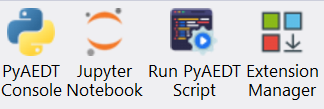
PyAEDT provides several panels that integrate directly into the AEDT interface, accessible from the Automation tab. These panels provide convenient graphical interfaces for common PyAEDT operations without requiring manual scripting.
Starting from AEDT 2023 R2, PyAEDT panels are available in the Automation Tab.
Installation#
You can install PyAEDT panels using any of the following methods:
Method 1: Using the CLI
The recommended way to install panels is using the PyAEDT command line interface:
pyaedt panels add --personal-lib "C:\\Users\\username\\AppData\\Roaming\\Ansoft\\PersonalLib"
For more details on CLI usage, see Command line interface.
Method 2: Using Python
You can also install panels programmatically:
from ansys.aedt.core.extensions.installer.pyaedt_installer import add_pyaedt_to_aedt

add_pyaedt_to_aedt(r"C:\Users\username\AppData\Roaming\Ansoft\PersonalLib")
Reset Option
If you need to perform a clean installation (removing existing panels before installing), use the --reset option:
pyaedt panels add --personal-lib "path/to/PersonalLib" --reset
This deletes the existing Toolkits directory inside PersonalLib before installing fresh panels.
This is useful for troubleshooting installation issues or cleaning up corrupted installations.
Available panels#
The following panels are installed when you add PyAEDT to AEDT:
PyAEDT utilities#
A group panel containing three essential tools:
Console
Opens an interactive Python console connected to the current AEDT session. This allows you to:
Execute Python commands interactively
Access and manipulate the current design
Test PyAEDT code snippets
Debug automation workflows
CLI
Provides access to the PyAEDT command line interface from within AEDT. You can:
Run CLI commands without opening a separate terminal
Manage AEDT processes
Configure test settings
Access documentation
Jupyter
Launches a Jupyter notebook server connected to the current AEDT session. Benefits include:
Interactive notebook environment
Visualization of results inline
Documentation of workflows with markdown
Sharing of analysis notebooks
Run script#
Executes Python scripts from the AEDT interface. This panel allows you to:
Browse and select a Python script file
Run automation workflows without leaving AEDT
Execute batch operations
Test custom scripts
Extension manager#
Provides a centralized interface for managing PyAEDT extensions and toolkits. Features include:
Browse and launch project-level extensions
Add custom extensions
Manage extension visibility in the AEDT ribbon
Install open source PyAEDT toolkits
For detailed information about extensions, see Extensions.
Version manager#
Manages PyAEDT and PyEDB installations. Available features:
Display current Python environment details
Check for latest PyAEDT/PyEDB releases on PyPI
Update packages from PyPI
Install from GitHub branches
Update from local wheelhouses
Reset and update PyAEDT panels
Note
The Version manager panel is optional and can be skipped during installation using the
--skip-version-manager flag or skip_version_manager=True parameter.
Troubleshooting#
Panels not appearing
If panels don’t appear after installation:
Ensure you restarted AEDT after installation
Check that the correct PersonalLib path was used
Verify that the Toolkits directory exists in PersonalLib
Try a clean installation using the
--resetoption
Permission Errors
If you encounter permission errors:
Ensure AEDT is closed during installation
Check that you have write permissions to the PersonalLib directory
Run the installation command with appropriate privileges
Corrupted Installation
To fix a corrupted installation:
pyaedt panels add --personal-lib "path/to/PersonalLib" --reset
This removes the old installation and installs fresh panels.
Video tutorial#
Watch the following video to see how to install PyAEDT panels: